5 Steps to a Working System

Step 1

Enable PGX Plugins

In your .uproject or through Edit → Plugins, enable PGXCoreRuntime and the L2 plugins you need (e.g., PGXSaveRuntime, PGXAudioRuntime).

Step 2

Create a Config DataAsset

Right-click in Content Browser → PGX FRAMEWORK → Create a Config DataAsset for your system (e.g., UPGXSaveConfig). The system auto-discovers it at startup.

Step 3

Fill Properties

Open the DataAsset in the Details panel. Fill in the configuration. Default values work out of the box — customize only what you need.

Step 4

Test with Console Commands

Hit Play in Editor, open console (~). Type pgx.save.status or pgx.audio.status to verify. Every system has diagnostic commands.

Step 5

Extend with Your Class

Want custom behavior? Set ClassSourceMode to Blueprint or CppClass in the Construction DA. Create your class, the system uses it automatically.

Step 2 in Practice

Create Any PGX Asset

Right-click in Content Browser → every PGX DataAsset organized by system. 58 asset types across 13 systems. No searching, no memorizing paths — the menu guides you to exactly the right asset.
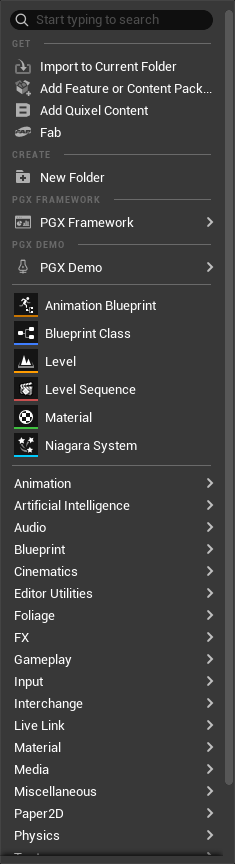
58 factories · 13 system categories · Context menu integration
Content Browser — PGX Categories
Editor Integration
Content Browser — Right-click showing PGX DataAsset categories for all 13 systems
Step 3 in Practice

Configure in the Details Panel

Open any Config DataAsset and fill in properties. Defaults work out of the box. Advanced settings are hidden behind progressive disclosure (AdvancedDisplay). Zero documentation needed to get started.
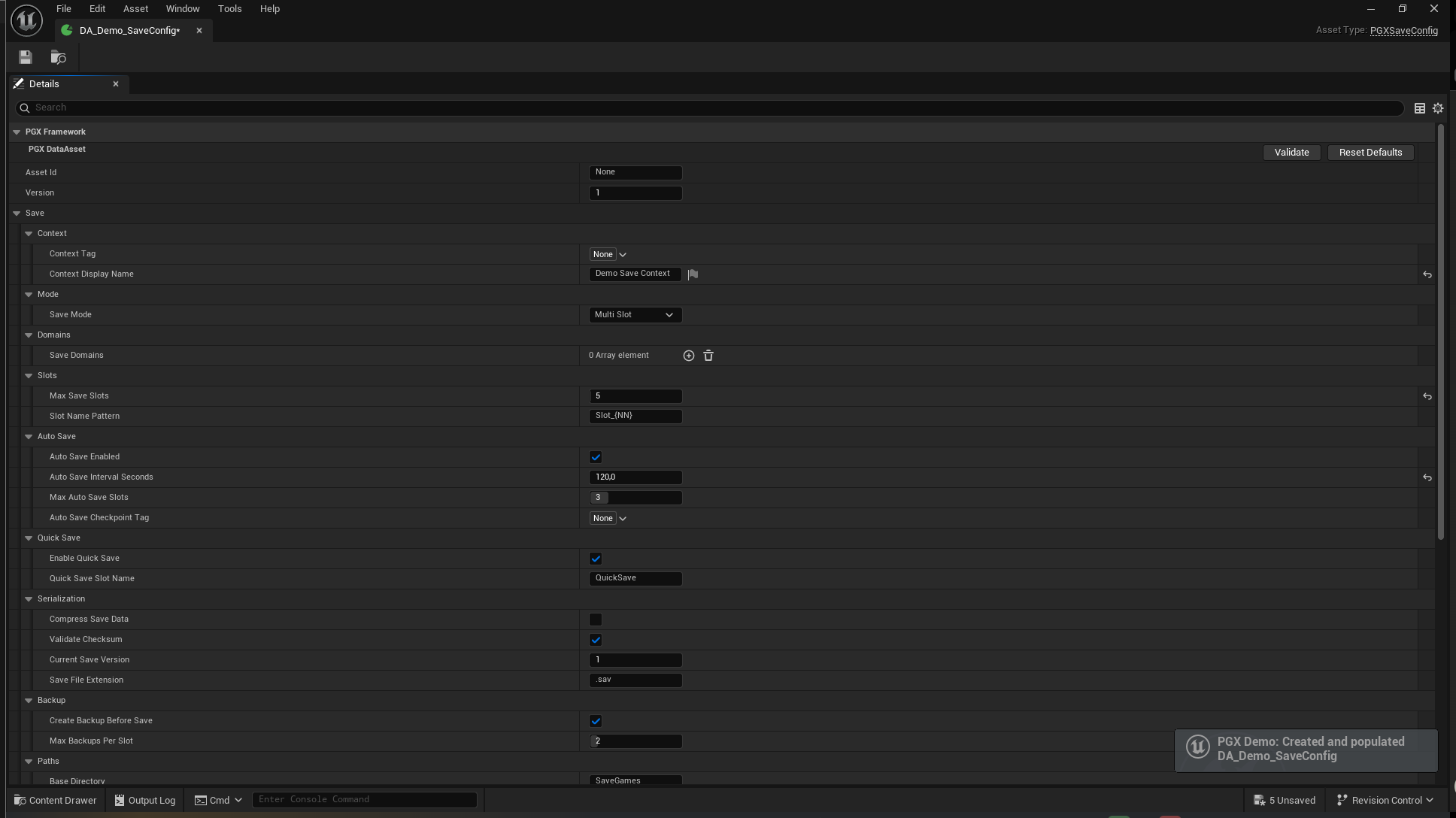
Progressive disclosure · Sensible defaults · Zero-config viable
UPGXSaveConfig — Details Panel
DataAsset Config
Details Panel — SaveConfig DataAsset with slots, auto-save, and serialization settings

Code Examples

The same functionality, two paths. C++ for direct subsystem access, Blueprints for zero-friction visual scripting.

// Step 1: Get the subsystem
UPGXSaveSubsystem* Save = GetGameInstance()->GetSubsystem<UPGXSaveSubsystem>();

// Step 2: Use the API
Save->SetDomainValue(Tag_Player, TEXT("Health"), 100);
Save->SetDomainValue(Tag_Player, TEXT("Level"), 5);

// Step 3: Save
Save->QuickSaveAsync(Tag_AutoSave);
// No subsystem access needed — use the BP Library directly

PGX Save | Data | Write
  SetDomainValue(DomainTag, Key, Value)
  QuickSaveAsync(SlotTag) → OnComplete

PGX Audio | Core
  PlaySound(SoundTag)
  PlayMusic(MusicTag, FadeIn)
Step 4 in Practice

Monitor Everything in Real Time

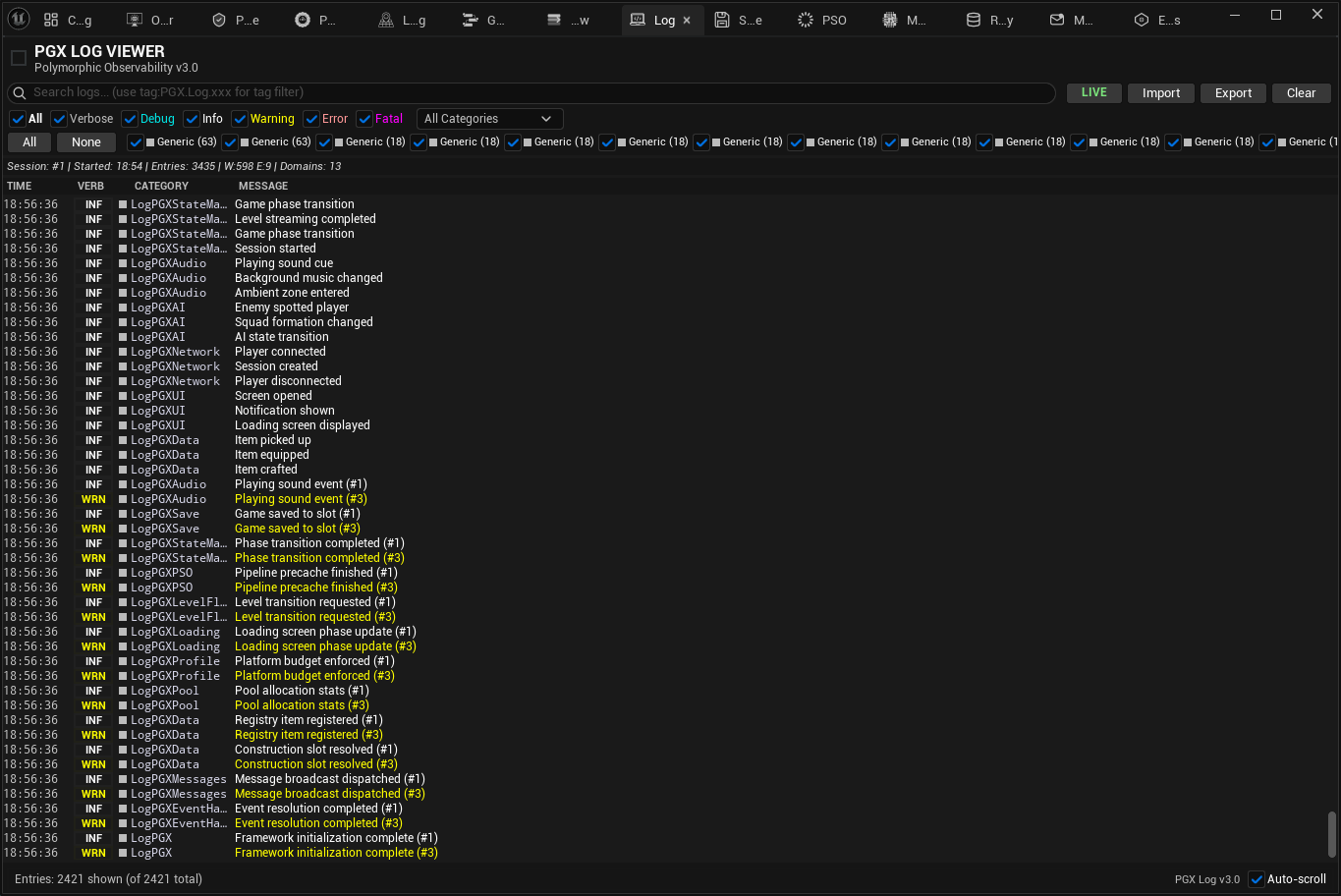
The code above runs. The Polymorphic Log Viewer v3.0 captures it all: categorized logs with per-system color coding, filters, search, and live updates. No breakpoints, no external tools.

Per-system log categories · Color-coded · Real-time filtering
PGX Log Viewer v3.0
Runtime Monitoring
PGX Log Viewer — Polymorphic v3.0 with categorized logs, filters, and per-system color coding

"La Caja y las Formas" — In Practice

One mental model. One workflow. Two paths to the same destination.

The DataAsset is the Box

Universal Entry Point

Every system has a Config DA. Create it in Content Browser, fill properties, done. The system auto-discovers it at startup. One container, one flow, one mental model.

Your Class is the Shape

Two Paths, Same Destination

Blueprint user: activate the checkbox, drag your BP class. C++ user: select from the dropdown. The DA accepts your piece, the system uses it. No architecture decisions required.

Zero Knowledge Required

UX-First Guarantee

A developer who has never read PGX source code can create an asset, fill in properties, and have a working system. If they need docs to find a setting, the UX has failed.

Explore Blueprint API → ← Quality Standards